



How to Highlight in Google Docs: Desktop, Android and iPhone, Plus Removing and Custom Colors
Google Docs hides its highlighter behind a small marker icon in the toolbar. Here is where it is on every device, how to make your own colors, and how to take a highlight off again.
in short
To highlight in Google Docs on a computer, select the text, click Highlight color in the toolbar, and choose a color. On Android, tap Edit, select the text, tap Format, then Highlight color. On iPhone or iPad, tap Edit, select the text, tap Format, then Text, then Highlight color.
If you want to know how to highlight in Google Docs, the short version is: select the words, then click the Highlight color button in the toolbar, the one that looks like a marker pen. The longer version matters if you work on a phone, want colors that are not in the preset grid, prefer the keyboard, or need to strip highlights out before you hand a draft in. This guide covers all of that, with each step worded the way Google's own help pages word it, and a short system for using color so a marked-up document stays readable.

How to highlight in Google Docs on a computer
Select first. The highlighter only works on text you have already chosen.
Google's help page Change the color of text, objects, and backgrounds gives the desktop steps. The same page notes that Highlight color is only available in Google Docs and Slides, so if you are looking for it in a spreadsheet, it is not there.
Open the document
On your computer, open the file in Google Docs in a browser. You need edit access; in a view-only file the toolbar has no Highlight color button.
Select the text
Drag across the words, or click at the start and Shift-click at the end. For precise selection without a mouse, the keyboard shortcuts for selecting text work in Docs as they do elsewhere.
Click Highlight color
In the toolbar, click Highlight color, the marker icon next to Text color. If your window is narrow, it may sit under the three-dot More menu at the end of the toolbar.
Choose a color
Pick a preset color from the grid, or create a custom color (below). The highlight appears behind the text at once.
The highlight is part of the document's formatting. Anyone who opens the file sees it, it prints. That makes it different from a comment, which sits beside the text and can be resolved. If you are marking a draft for someone else, a comment says why; a highlight only says where.
How to highlight in the Google Docs app on Android, iPhone and iPad
The app puts the highlighter inside the Format panel, and the path differs slightly between the two systems. Both sets of steps below follow Google's Android and iPhone and iPad versions of the page Change how paragraphs and fonts look.
| Step | Android phone or tablet | iPhone or iPad |
|---|---|---|
| 1 | Open the document in the Google Docs app | Open the document in the Google Docs app |
| 2 | Tap Edit (the pencil) | Tap Edit (the pencil) |
| 3 | Double-tap the place you want to edit; move the blue markers to select more text | Double-tap the place you want to edit; move the blue markers to select more text |
| 4 | Tap Format (the letter A with lines) | Tap Format, then tap Text |
| 5 | In the Text section, tap Highlight color | In the menu, tap Highlight color |
| 6 | Choose a color | Choose a color |
Two things trip people up on a phone. First, the app opens files in view mode, and the Format button does not appear until you tap Edit. Second, a double-tap selects one word; drag the blue markers to widen the selection before you open Format. For other apps on a phone, such as a browser or a PDF reader, see the guide to highlighting text on a phone.
Keyboard routes to the highlighter
Google Docs has no single key combination that applies a highlight, but its list of keyboard shortcuts for Google Docs includes three that get you close.
| What you want | Windows and ChromeOS | Mac | How to use it |
|---|---|---|---|
| Tool finder (formerly Search the menus) | Alt + / | Option + / | Select text, press the shortcut, type highlight, and choose Highlight color from the results |
| Copy text formatting | Ctrl + Alt + c | ⌘ + Option + c | Copy the formatting of a passage you have already marked |
| Paste formatting | Ctrl + Alt + v | ⌘ + Option + v | Apply that formatting to new selected text |
| Clear text formatting | Ctrl + \ | ⌘ + \ | Remove formatting from the selection, highlight included |
| Open the shortcut list | Ctrl + / | ⌘ + / | See every shortcut in the document itself |
The Format menu also has a shortcut of its own: Alt + Shift + o on Windows and ChromeOS, Control + Option + o on a Mac, according to the same help page that lists the app steps.
How to remove a highlight
There are two ways, and they do different amounts of work.
- Remove only the highlight. Select the highlighted text, click Highlight color, and choose None at the top of the color grid. Bold, italics and links stay as they were.
- Remove all formatting. Select the text and press Ctrl + \ (⌘ + \ on a Mac), the Clear text formatting shortcut. This takes off the highlight and also any bold, italics, font changes and text color in the selection. Use it on a whole document only when you want plain text back.
Custom highlight colors
The preset grid is enough for most people, but you can make your own. Google's color help page describes two ways: enter a Hex code or RGB values, or pick a color from your screen with an eyedropper.
- In the toolbar, click Highlight color (or Text color, or any tool with color options).
- Under Custom, click Add a custom color.
- Enter the Hex code or the RGB values, then click OK.
- To match a color already on your screen instead, click Pick a custom color under Custom and click the color with the eyedropper. Google notes this feature is supported in Chrome and Edge.
After you create a custom color, Google says you can use it anywhere else in that file. It does not carry over to your other documents, so if you rely on a specific shade, keep its Hex code in a note.
A worked example: marking a draft paragraph
Here is an example of how one paragraph might be marked before revision. The paragraph is a sample written for this guide:
- Select Studies show that remote workers are more productive, click Highlight color and choose yellow: a claim that needs a source.
- Select This raises important questions about the future of work and choose a pale pink: a stock line to rewrite or cut.
- Select the sentence about your own team and choose green: your own observation, the part worth keeping.
- Select the yellow sentence again, click Add comment in the toolbar and type Which studies? Find one or cut. The highlight shows where; the comment says why.
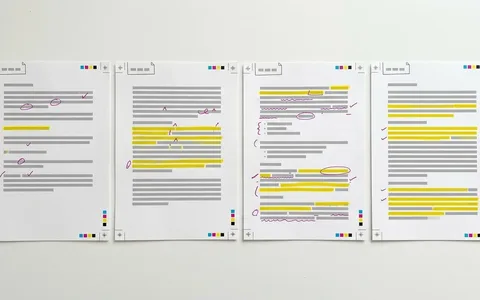
Three colors, one comment, and the paragraph has become a short list of jobs. The same habit scales to a whole essay. A guide to building a highlighter color code explains how to choose colors that mean one thing each and keep them consistent across documents.
Pitfalls
- Looking for the highlighter in Sheets. Highlight color exists only in Docs and Slides. Sheets has Fill color for whole cells instead.
- Editing in Suggesting mode. If the document is in Suggesting mode, a highlight you add is proposed as a formatting suggestion for the owner to accept. Switch to Editing mode in the top right if the file is yours.
- Highlighting without a key. Six colors with no legend mean nothing a week later. Put a one-line key at the top of the document.
- Using a highlight where a comment belongs. A reviewer cannot reply to a color. If you need a response, add a comment as well.
- Clearing formatting by accident. Ctrl + \ removes more than the highlight. Use None in the color grid when you only want the color gone.
Tips for highlighting well in a document
- Highlight less than you think. A sentence per paragraph is usually enough; a page that is mostly yellow tells you nothing.
- Use one color per meaning. Claims, phrasing problems and keepers each get their own color, every time.
- Check the version history. If you remove highlights by mistake, File, then Version history, lets you see and restore an earlier state of the document. Version history as an authorship record covers what else it shows.
- On the web, use a link instead. Highlights in Docs live inside the document. To point someone at a sentence on a public web page, use a link that opens the page at a highlighted sentence.
Highlighting in Google Docs comes down to one button: select the words, click Highlight color, choose a color. On a phone, tap Edit and Format first. Make custom colors with a Hex code or the eyedropper, remove a highlight with None, and keep a one-line key so the colors still mean something next week. For highlighting outside documents, the other guides to highlighting and selecting text cover web pages, PDFs and phones.
Common questions
Where is the highlight button in Google Docs?
It is in the toolbar, next to Text color, and looks like a marker pen. Google calls it Highlight color. If your browser window is narrow, the toolbar may fold some buttons into the three-dot More menu at its right end. The button only applies to text you have already selected.
Is there a keyboard shortcut to highlight in Google Docs?
There is no single shortcut that applies a highlight. The quickest keyboard route is the Tool finder: select the text, press Alt + / on Windows or ChromeOS (Option + / on a Mac), type highlight, and choose Highlight color. Copy and paste formatting shortcuts can then repeat the result elsewhere.
How do I highlight in Google Docs on my phone?
Open the document in the Google Docs app and tap Edit. Double-tap the text and drag the blue markers to select it. Tap Format; on an iPhone or iPad also tap Text. Then tap Highlight color and choose a color. The Format button only appears after you tap Edit.
How do I remove highlighting in Google Docs?
Select the highlighted text, click Highlight color and choose None to remove only the color. To remove every kind of formatting at once, select the text and press Ctrl + \ (or ⌘ + \ on a Mac), which is Google's Clear text formatting shortcut. That also removes bold, italics and font changes.
Can I make a custom highlight color in Google Docs?
Yes. Open Highlight color, and under Custom click Add a custom color, then enter a Hex code or RGB values and click OK. You can also click Pick a custom color to use an eyedropper, which Google says works in Chrome and Edge. Custom colors are available anywhere else in that file.
Why can't I highlight text in a Google Doc?
Usually because you can only view or comment on the file. Highlighting changes the document, so it needs edit access; ask the owner, or make a copy with File, then Make a copy. On a phone, check that you tapped Edit first. In Google Sheets the Highlight color tool does not exist.
Sources
- Google Docs Editors Help: Change the color of text, objects, and backgrounds
- Google Docs Editors Help: Change how paragraphs and fonts look (Android phone and tablet)
- Google Docs Editors Help: Change how paragraphs and fonts look (iPhone and iPad)
- Google Docs Editors Help: Keyboard shortcuts for Google Docs (computer)
sign-off
Checked against its sources and signed before it went out.
Nora Feld
Editor · reviewed 2 Nov 2026