

How to Highlight on Kindle, Find Your Highlights Again and Export Them
A Kindle highlight takes one gesture to make and is easy to lose track of. Here is how to make one on each kind of Kindle, where Amazon keeps them all, and how to get them out as notes you can use.
in short
To highlight on a Kindle, press and hold a word, drag across the passage, release, and choose Highlight. In Kindle for Web, select the text and pick a color in the pop-up. Highlights sync to your Amazon account, where the notebook lists every highlight, note and bookmark for each book.
Learning how to highlight in Kindle books takes about ten seconds: press on a word, drag to the end of the passage, let go, and choose to highlight it. The harder part is what happens afterwards. Highlights pile up across devices, show in different colors on different screens, and live in a notebook many readers never open. This guide covers the gesture on an e-reader, in the Kindle app and in Kindle for Web, then where your highlights are stored, how to export them, and why some books stop letting you copy text out.
How to highlight in Kindle books on each device
Tap, hold and drag. Then decide whether the passage earns it.
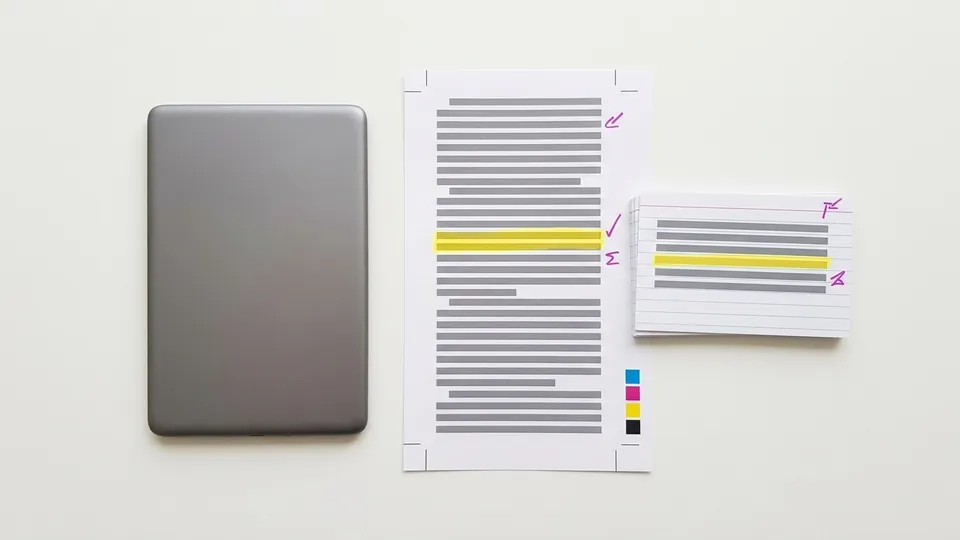
Amazon's own feature page, Kindle Bookmarks, Notes, and Highlights, describes the gesture in four words: tap, hold and drag to highlight. The details vary slightly by device.
| Where you read | How to make a highlight | What you see |
|---|---|---|
| Kindle e-reader | Press and hold the first word, drag to the last word, release, then choose Highlight in the menu that appears | Gray shading on the page |
| Kindle app (phone, tablet, computer) | Press and hold, drag the selection handles to cover the passage, then choose a highlight color | The color you chose |
| Kindle for Web (read.amazon.com) | Select the text, then select a color in the pop-up | The color you chose; Amazon says it shows in a supported color elsewhere |
The Amazon help page Add Highlights in Kindle for Web gives the web steps as two lines: select the text you want to highlight, then in the pop-up select a color. Its note matters if you switch devices: highlights made in color are shown in a supported color on other devices and applications, and a black and white Kindle e-reader shows them in gray. A yellow and a blue highlight made on a laptop will look the same on an e-ink screen.
Adding a note to a highlight
A highlight records what caught your eye; a note records why. In Kindle for Web, Amazon's notes help page describes selecting the text, choosing the Note icon in the pop-up, typing in the window and saving; the passage is highlighted and a note icon appears at its end. On an e-reader or in the app, tap an existing highlight and choose to add a note from the menu. Amazon's feature page puts the purpose plainly: notes help you summarize and record key thoughts and reactions about your book.
Bookmarks
For a place rather than a passage, use a bookmark. Amazon's feature page says to tap the upper right corner of a page to create one. Bookmarks appear in the same notebook as your highlights.
Where your Kindle highlights are stored
Every highlight, note and bookmark syncs to your Amazon account, provided sync is on. Amazon's help page Update Your Sync Settings for Kindle says sync is enabled by default on all Kindle devices and apps, backs up your reading position, notes and highlights to Amazon's servers, and needs an internet connection to work. There are three places to see the results.
- Inside the book. Each book has a notebook listing its highlights and notes in page order. On an e-reader and in the app it is in the book's reading menu; Amazon's feature page describes it as the place to see all of your book's notes and highlights.
- Kindle for Web. Amazon's help page for the notebook in Kindle for Web describes it as a way to manage your notes, highlights and bookmarks from a single list.
- The online notebook. Signed in at
read.amazon.com/notebook, you can browse highlights for every Kindle book in your library, one book at a time, from any browser. This is the easiest place to read and copy them.
How to export Kindle highlights
There is no single export button that covers your whole library, so the method depends on what you need: one book's highlights as a file, or many books' highlights as text to paste into notes.
Check that sync is on
Export depends on sync. On the e-reader: More, then Settings, then Device Options. In the app: More, then Settings, then Sync.
Open the book's notebook
Open the book, open its reading menu and choose the notebook or the list of notes and highlights.
Use the export or share option
In the app and on recent e-readers the notebook has an export or share action. Follow the prompts; the result is sent to you or handed to another app, depending on the device.
Or copy from the online notebook
At
read.amazon.com/notebook, choose the book in the left column. Its highlights appear in order with locations; select and copy them into your notes.Record where each line came from
Paste the book title, edition and location with each highlight. A quotation without its location is hard to cite later.
Why an export stops short: copy limits
Some books stop letting you take out more text after a point. The highlight still appears in the book, but the notebook or the export no longer shows its words, and some apps show a message that a clipping limit has been reached. The limit belongs to the book, not to your account, and Amazon's help pages do not publish how large it is for a given title. Two habits keep this from costing you work:
- Highlight short. The key sentence rather than the whole page. Short highlights use less of any allowance and make better notes anyway.
- Write the point in a note. A note in your own words is not a copy of the book's text, and it is the part you will actually reuse.
If a passage you need will not export, record its location and type the quotation yourself from the book, checking it word by word.
A worked example: one chapter to a page of notes
Here is an example of how a student reading a public-domain novel on an e-reader might turn a chapter into usable notes. The details are illustrative.
- While reading chapter one of Pride and Prejudice, the student highlights the opening sentence and two lines of dialogue, and adds a note to the first: irony; the narrator does not mean this literally.
- Back at a laptop, they open
read.amazon.com/notebook, choose the book, and see the three highlights with their locations and the note under the first. - They copy all three into a document, add the edition, and turn the note into a sentence of their own about the narrator's tone.
- Later, writing the essay, they quote one line and cite it by location, because the notebook recorded it.
Three highlights became one line of analysis and one checked quotation. Turning highlights into notes describes this step in more detail, and building an annotated bibliography from highlights shows how to collect them across several books.
Pitfalls
- Expecting colors on an e-ink screen. Colors you choose in the app or on the web show as gray on a black and white e-reader.
- Reading with sync off. Highlights made with sync off may be lost when you turn it back on, and export is unavailable while it is off.
- Highlighting whole pages. Long highlights use up any copy allowance faster and are hard to review.
- Losing the location. A pasted quotation without the book's location or page is a quotation you will have to find again.
- Treating a highlight as a citation. A highlight records the words; you still need the title, edition and location to cite them.
Tips
- Pair every highlight with a word or two. A one-word note such as evidence or disagree makes the notebook searchable by purpose.
- Review weekly. Open the online notebook once a week and move the useful lines into your own notes while you still remember why you marked them.
- Use bookmarks for structure. Bookmark chapter openings in a textbook so the notebook doubles as an outline.
- Pick a tool for the next step. If you collect highlights from Kindle, web pages and PDFs, a comparison of annotation and read-later apps covers tools that gather them in one place.
Highlighting a shared document works differently; see how to highlight in Google Docs, and for web pages on a phone, highlighting text on a phone or tablet.
To highlight on Kindle, tap, hold and drag, then choose Highlight or a color. Add a short note so the highlight says why, keep sync on so it reaches your account, and review the notebook at read.amazon.com/notebook to copy what you need, with its location, before a book's copy limit or a sync problem gets in the way. For highlighting on other screens, the rest of the guides to highlighting on web pages, phones and PDFs pick up where this one ends.
Common questions
How do you highlight on a Kindle e-reader?
Press and hold the first word of the passage, drag to the last word, and release. A menu appears; choose Highlight. The passage is shaded gray. To add a note, tap the highlight and choose to add a note. Amazon's feature page sums the gesture up as tap, hold and drag to highlight.
Can you highlight in different colors on Kindle?
Yes, in the Kindle apps and in Kindle for Web, where Amazon says you select the text and pick a color in the pop-up. A black and white Kindle e-reader shows every highlight in gray, so colors you choose elsewhere will not be visible on that screen even though they sync.
Where do I find all my Kindle highlights?
Inside each book, open the reading menu and choose the notebook, which lists its highlights and notes in order. To see every book from a browser, sign in at read.amazon.com/notebook and choose a title in the left column. Both depend on sync, which Amazon enables by default on all Kindle devices and apps.
How do I export Kindle highlights?
Make sure sync is on, open the book's notebook in the Kindle app or on the e-reader, and use its export or share option. For text you can paste, sign in at read.amazon.com/notebook, open the book, and copy the highlights. Keep the book title and locations with what you copy.
Why are some of my Kindle highlights missing from the export?
Usually because the book has a limit on how much text can be copied out. Past that point, highlights still show in the book but their text no longer appears in the notebook or export. The other common cause is sync: Amazon warns that highlights made while sync is off may be lost.
Do Kindle highlights sync between devices?
Yes, when sync is on. Amazon says sync is enabled by default on all Kindle devices and apps, and that it saves your reading position, notes and highlights to Amazon's servers so they appear on every device linked to your account. Your device needs an internet connection, and highlights made while sync is off may be lost.
Sources
sign-off
Checked against its sources and signed before it went out.
Nora Feld
Editor · reviewed 2 Nov 2026