How to Annotate a PDF for Free: Comments, Notes, Drawing and Text Boxes on Any Device
You do not need paid software to write on a PDF. The free tools already on most computers and phones add notes, drawings and text, if you know where they keep them.
in short
To annotate a PDF for free, open it in a reader with markup tools: Preview on a Mac (Show Markup Toolbar), Adobe Acrobat (the Add a comment tool), Microsoft Edge (select text, right-click, Add Comment, or draw with ink), or the free Acrobat Reader app on a phone. Save the file so the notes stay in the PDF.
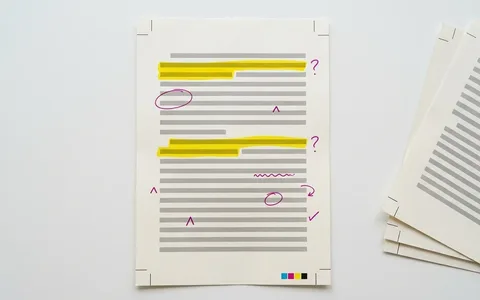
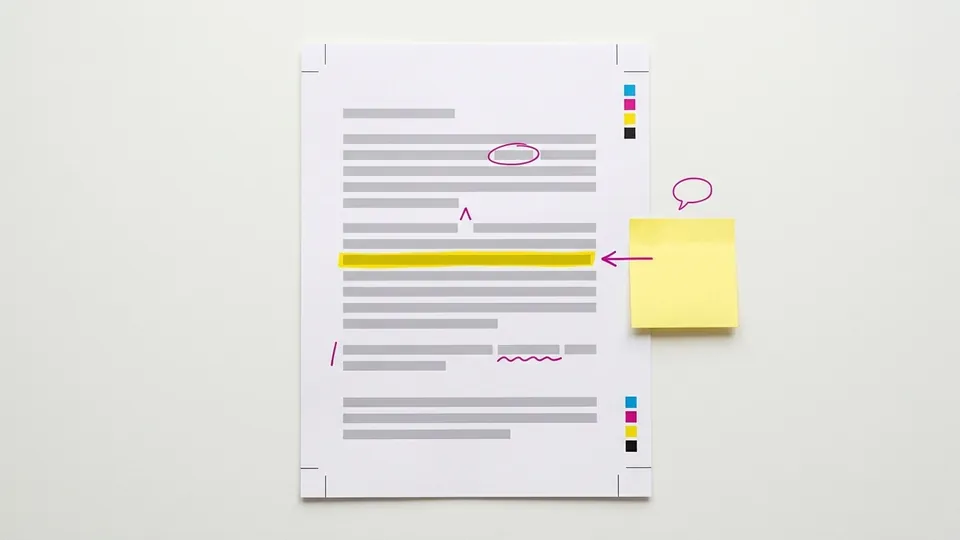
Knowing how to annotate a PDF saves printing a reading just to write on it. Annotation is everything you add on top of the page without changing the text underneath: comments, sticky notes, freehand drawing, shapes and typed text boxes. The free tools on a Mac, a Windows PC and a phone all do it, but each hides the tools in a different place and saves them differently. This guide gives the steps from Apple, Adobe and Microsoft for each tool, a table for choosing one, a worked example on a short reading, and the pitfalls that lose people's notes.
What you can add when you annotate a PDF
Five kinds of annotation cover almost every reading job. Highlighting is the sixth and has its own guide to highlighting text in a PDF; this page covers the rest.
| Annotation | What it is for | Preview (Mac) | Acrobat | Edge |
|---|---|---|---|---|
| Comment on text | A note tied to a passage | Note tool | Add a comment | Right-click, Add Comment |
| Sticky note | A margin note anywhere | Note tool | Add a comment, then click a spot | Text notes on selected text |
| Freehand drawing | Circles, arrows, ticks | Sketch and Draw tools | Freeform drawings | Inking with color and width |
| Shapes | Boxes and lines | Shapes tool | Shapes and lines | Not listed by Microsoft |
| Text box | Typed text on the page | Text tool | Text box comments | Not listed by Microsoft |
How to annotate a PDF on a Mac with Preview
Annotations sit on top of the page. The words underneath never change.
Preview cannot edit a PDF's text, but Apple's guide to annotating a PDF in Preview says its markup tools are for giving feedback or writing down something you want to remember.
Show the Markup toolbar
Open the PDF in Preview and click the Show Markup Toolbar button if the toolbar is not showing.
Add a note
Choose the Note tool and type. Apple says you can Control-click a note to change its color and drag it to move it.
Add a text box
Choose the Text tool, type, then drag the box where you want it. Text Style changes the font and color.
Draw or add shapes
Sketch draws a single stroke and replaces it with a standard shape if it recognizes one. Draw, on Macs with a Force Touch trackpad, makes a heavier line when you press harder. Shapes adds boxes, lines and a highlight shape.
Save the right way
Apple says File > Save, File > Export or File > Export to PDF keeps the annotations editable. To flatten them so they cannot be edited, choose File > Print, then Save as PDF.
How to add comments in Adobe Acrobat
Adobe's Acrobat Reader page describes Reader as free and lists comments, sticky notes, highlights, strikethroughs and freehand drawing on desktop and mobile, on Windows, Mac, iOS and Android. Adobe's help page on adding comments with sticky notes gives the steps for Acrobat on the desktop:
- Select the Add a comment tool from the Quick action toolbar.
- Select the place in the document where you want the note.
- Type your comment in the pop-up note that appears.
- Select Post.
Adobe's help index also has separate pages for text box comments and for shapes, lines and freeform drawings, so the same toolbar is the place to look for those. Save the file when you finish so the comments stay with it.
How to annotate a PDF in Microsoft Edge
On Windows, the browser is often the quickest free option, and Edge has a PDF reader built in. Microsoft's documentation of the PDF reader built into Edge lists three annotation features:
- Inking. Draw on the page for quick notes, a signature or a form. Microsoft says you can change color and stroke width to draw attention to different parts of the file.
- Highlights. Select text, right-click, choose highlights in the menu and pick a color. Microsoft adds that highlights can also be made with a pen or the keyboard.
- Text notes. Select a piece of text, right-click and choose Add Comment. A box opens; type the comment and click the check mark. The text is then highlighted and a comment icon marks the note. Hover over the icon to preview it, or click to edit.
Microsoft lists support for local, online and embedded PDF files. Save the file afterwards so the notes are kept in your copy.
How to annotate a PDF on a phone or tablet
On a phone, the simplest free route is the Acrobat Reader app. Adobe's Reader page says the mobile app runs on iOS and Android and offers the same kinds of marks as the desktop: comments, sticky notes, highlights, strikethroughs and freehand drawing. Adobe adds that the mobile app can also fill and sign forms.
Install Acrobat Reader
Get it from the App Store or Google Play, which Adobe links from its Reader page.
Open the PDF in the app
Open the file from your downloads, an email attachment or a cloud folder, and choose Acrobat Reader as the app.
Use the comment tools
Pick a sticky note, a highlight or the drawing tool, then tap or drag on the page. Zoom in first when you place small marks.
Save and check
Save or share the annotated copy, then open it once more to confirm the marks are there.
Small screens favor short notes and simple marks. For highlight-only work, the phone highlighting guide is shorter.
A worked example: annotating one page of a reading
Suppose page 4 of an assigned PDF contains this sample paragraph, written for the example: "Between 2019 and 2023 the town's bus ridership fell by a third. Officials blamed remote work. Fares, however, rose twice in the same period." Here is a three-minute annotation plan in any of the tools above.
- Comment on the first sentence: "Source for the one-third figure? Check the transit report."
- Draw a circle around "Officials blamed remote work." with an arrow to the margin and a text box: "Claim, no evidence given."
- Sticky note beside "Fares, however, rose twice": "Alternative cause. Use in paragraph 2 of the essay."
- Text box at the top of the page: "Main point: ridership drop has more than one cause."
Four marks, each saying why it is there. A shared shorthand speeds this up; the list of annotation symbols gives one, and the method for annotating any text explains what to look for before you mark. If the notes are checking a claim, annotating sources to verify claims shows how to record what each source says.
Pitfalls when annotating a PDF
- Not saving. Closing a browser tab or a viewer without saving can drop every note. Save, then reopen the file to check.
- Flattening by accident. In Preview, printing to PDF flattens annotations so they can no longer be edited. Keep an editable copy.
- Annotating a scan. If you cannot select text, comment tools tied to a passage will not attach. Use sticky notes, text boxes and drawing instead.
- Assuming every viewer shows every mark. Open the marked file in a second reader before you share it, and fix anything missing.
- Writing marks without reasons. A circle with no note means nothing a week later. Add a word or two to every mark.
Tips for useful PDF annotations
- Read once before you mark. The first pass finds the argument; the second pass marks it.
- One idea per note. Short notes are easier to sort and reply to.
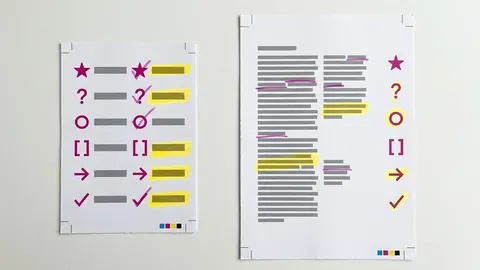
- Keep a key. If circles mean claims and boxes mean evidence, write the key on the first page.
- Gather the notes. Preview's View > Highlights and Notes lists marks in the sidebar, a quick start for writing up.
Annotating a PDF needs no paid software: Preview on a Mac, Edge on Windows and Acrobat Reader on desktop and mobile all add comments, notes, drawing and text. Pick the tool that is already installed, give every mark a reason, and save before you close. For highlighting, phones and web pages, the rest of the guides to highlighting and annotating pick up from here.
Common questions
How can I annotate a PDF for free?
Use a free reader that has markup tools. On a Mac, Preview's Markup toolbar adds notes, text boxes, shapes and drawing. On Windows, Microsoft Edge's built-in PDF reader adds ink, highlights and text notes. Adobe describes Acrobat Reader as free, with comments, sticky notes, highlights and drawing on desktop and on iOS and Android.
How do I add comments to a PDF?
Select the passage and use the reader's comment command. In Edge, right-click the selected text and choose Add Comment, type, and click the check mark. In Acrobat, choose Add a comment from the Quick action toolbar, click the spot, type and select Post. In Preview, use the Note tool. Save the file so the comments stay.
Can I write on a PDF with a pen or my finger?
Yes. Microsoft Edge's inking feature lets you draw on a PDF with adjustable color and stroke width. Preview has Sketch and Draw tools on a Mac, and Draw responds to pressure on a Force Touch trackpad. On a phone, Adobe lists freehand drawing among the free Acrobat Reader app's tools.
Do PDF annotations change the original text?
No. Annotations sit in a layer on top of the page, which is why Apple notes that Preview cannot edit a PDF's text but can mark it up. You can delete or edit annotations later, unless they have been flattened, for example by printing the file to a new PDF in Preview.
Why did my PDF annotations disappear?
Most often the file was not saved after marking, or it was opened in a viewer that does not display that kind of annotation. Save in the same app you used, reopen the file to check, and test it in a second reader before sharing. A file locked by its author may also block new comments; ask for an unlocked copy.
Sources
sign-off
Checked against its sources and signed before it went out.
Nora Feld
Editor · reviewed 2 Nov 2026