
How to Highlight in Word, Remove Highlighting and Find Highlighted Text
Word's highlighter is one button, but it hides three useful tricks: a mode that keeps it switched on, a way to clear it in one pass, and a search that finds every mark.
in short
To highlight in Word, select the text, go to the Home tab, click the arrow next to Text Highlight Color and choose a color. To remove it, select the text and choose No Color. To find highlights, open Advanced Find, choose Format > Highlight, then Find Next.
If you want to know how to highlight in Word, the short answer is the Text Highlight Color button on the Home tab. The longer answer is worth a few minutes, because the same button can stay switched on for a whole editing session, clear every mark in a document at once, and pair with Advanced Find to jump from one highlight to the next. This guide gives Microsoft's steps for Word on Windows, Mac, the web and tablets, then covers removing highlighting, finding highlighted text, and the difference between highlighting and shading.
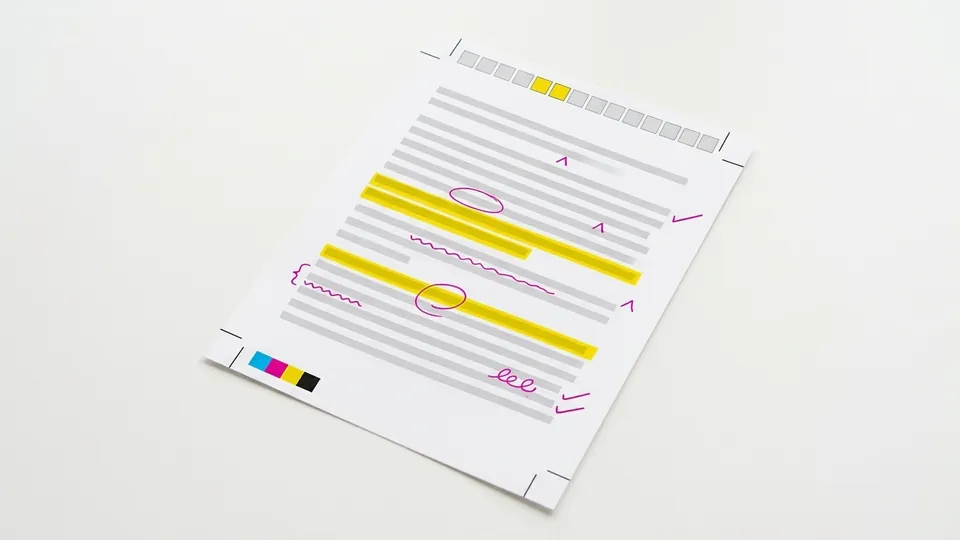
How to highlight in Word on Windows
Pick the color first and Word's highlighter stays on until you press Esc.
Microsoft's support page on applying or removing highlighting covers Word for Microsoft 365 and Word 2016 through 2024. It describes two methods: one for a single selection and one for marking many passages in a row.
Highlight one selection
Select the text, go to Home, click the arrow next to Text Highlight Color, and choose a color.
Or switch the highlighter on
With nothing selected, go to Home, click the arrow next to Text Highlight Color and pick a color. Microsoft says the button then shows that color and the pointer turns into a highlighter when it is over text.
Drag across each passage
Select each piece of text or graphic you want to mark. The highlighter stays on between selections.
Turn it off
Click the arrow next to Text Highlight Color and choose Stop Highlighting, or press Esc.
Microsoft adds one printing note: use a light highlight color if you plan to print on a monochrome printer, or the text underneath may be hard to read.
How to highlight in Word for Mac
The same Microsoft page has a macOS tab, and the steps match with two small changes. Go to Home > Text Highlight Color and choose a color for a selection. To mark several passages, pick the color with nothing selected, then select each passage; choose Stop Highlighting or press Esc to finish. To select the whole document before removing highlights, Microsoft gives Command+A in place of Ctrl+A.
How to highlight in Word for the web
Word for the web has the Text Highlight Color control on the Home tab too. Microsoft's screen reader guide to changing text in Word gives a keyboard route for the web version: select the text, press Alt+Windows logo key+H to go to the Home tab, press I for Text Highlight Color, press Tab until you reach the color you want, then press Enter.. it is a keyboard route to the highlighter that Microsoft documents.
How to highlight in Word on a tablet or phone
Microsoft's guide to formatting a Word document on a tablet covers Word for Android tablets, Word for iPad and Word Mobile. On an Android tablet the instruction is short: select some text, tap the highlight icon, then choose a highlight color. The page gives the matching steps for iPad. To select text on these devices, Microsoft says to double-tap a word, triple-tap a paragraph, or tap the first word and drag the handles to the end of the selection.
Microsoft's page names Word Mobile but spells out the steps for tablets; on a phone the same highlight icon sits with the other font controls in a smaller layout. For phone-wide tricks that apply in any app, see the guide to highlighting text on a phone.
How to remove highlighting in Word
Removing a highlight uses the same button, with No Color as the choice. Microsoft's steps:
- Select the highlighted text. To clear the whole document, press Ctrl+A on Windows or Command+A on a Mac.
- Go to Home and click the arrow next to Text Highlight Color.
- Choose No Color.
If the color does not go away, it is probably shading, not highlighting. The next two sections explain how to tell them apart and how to clear shading.
How to find highlighted text in Word
On a long document, finding every highlight by scrolling is slow. Microsoft documents a search for highlight formatting on both platforms.
Open Advanced Find
On Windows, go to Home, then in the Editing group choose Find > Advanced Find. On a Mac, choose Edit > Find > Advanced Find and Replace.
Show the formatting options
If you do not see the Format button, select More.
Search for highlight
Select Format > Highlight.
Step through the marks
Select Find Next. Each press jumps to the next highlighted passage.
Highlighting vs shading in Word
Word has a second way to put color behind text. Microsoft's page on applying shading to words or paragraphs explains the difference: shading gives words or paragraphs a background color that updates when you switch to a different document theme, while highlighting has a very limited choice of colors and does not update when you switch themes. To shade, select the text, go to Home, click the arrow next to Shading in the Paragraph group, and choose a color under Theme Colors.
| Highlighting | Shading | |
|---|---|---|
| Where the button is | Home > Text Highlight Color (Font group) | Home > Shading (Paragraph group) |
| Color choice | A short fixed set | Theme colors, standard colors, or More Colors |
| Follows a theme change | No | Yes, for theme colors |
| Best use | Review marks you will remove later | Design color that stays in the final document |
The practical rule: if a color will not clear with No Color, check the Shading button. Shading has its own No Color option.
A worked example: an editing pass in Word
Here is a sample three-color editing pass on a draft paragraph. The sentences are written for this example.
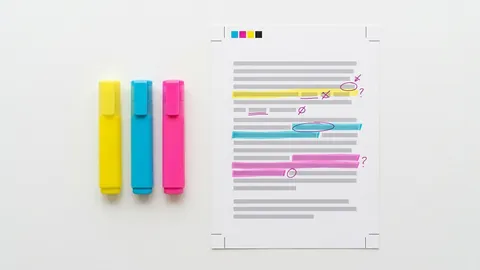
- Yellow for claims that need a source. "Most of them said the library is too loud." How many is most? The survey data should give the number.
- Green for the main recommendation. "Opening hours should be extended to midnight." This is the sentence the paragraph exists for.
- Turquoise for vague phrasing. "It is widely acknowledged" names nobody. Cut it or name who said it.
With the highlighter switched on, the pass takes one drag per sentence. Afterwards, Format > Highlight in Advanced Find walks you through each mark, and a final Ctrl+A and No Color returns a clean copy. A full scheme of colors is in the highlighter color-code system, and the same method for drafts written with AI help is in how to mark up an AI draft.
Pitfalls when highlighting in Word
- Treating shading as highlight. They are separate features with separate buttons, so No Color on the highlight button leaves shading in place.
- Dark colors on printouts. Microsoft recommends a light color for monochrome printing. Dark highlights can hide the text.
- Leaving the highlighter on. If every click marks text, press Esc or choose Stop Highlighting.
- Handing in a highlighted copy. Clear review marks with Ctrl+A and No Color before you submit, unless the reader asked to see them.
- Using color as the only signal. Some readers cannot tell colors apart. Add a comment that says what the mark means.
Tips for highlighting in Word
- Fix your colors before you start. Decide what yellow, green and turquoise mean, and write the key at the top of the document.
- Combine highlights with comments. A highlight shows where; a comment says why. Reviewers act faster on both together.
- Use Find for a final check. Format > Highlight with Find Next proves nothing is left before you send the file.
- Use the same habits elsewhere. The steps in the Google Docs highlighting guide follow the same pattern, so a shared scheme works in both.
Other Office apps work differently: see highlighting cells and text in Excel and highlighting text in PowerPoint and Google Slides.
Highlighting in Word is one button with three uses: mark a passage, keep the highlighter on for a whole pass, and clear everything with No Color. Add Advanced Find with Format > Highlight to review your marks, and reach for shading only when the color belongs in the final design. For other editors and devices, the rest of the highlighting guides follow the same plan.
Common questions
What is the shortcut for highlighting in Word?
Microsoft's highlighting page gives no keyboard shortcut for desktop Word. In Word for the web, Microsoft documents a keyboard route: select the text, press Alt+Windows logo key+H for the Home tab, press I for Text Highlight Color, Tab to a color, and press Enter. On the desktop, the highlighter mode saves the most clicks.
How do I remove all highlighting in Word at once?
Press Ctrl+A on Windows or Command+A on a Mac to select the whole document, go to Home, click the arrow next to Text Highlight Color and choose No Color. Every highlight in the selection is cleared. If some color remains, it is shading; clear it with Home > Shading > No Color.
Why can't I remove highlighting in Word?
Usually because the color is shading, not highlighting. Microsoft treats them as separate features: shading sits in the Paragraph group on the Home tab and follows the document theme, while highlighting sits in the Font group. Select the text, open Home > Shading and choose No Color to clear it.
How do I find highlighted text in Word?
Open Advanced Find: Home > Find > Advanced Find on Windows, or Edit > Find > Advanced Find and Replace on a Mac. Select More if needed, then Format > Highlight, and press Find Next to jump to each highlighted passage in turn.
Can I use any color to highlight in Word?
No. Microsoft describes highlighting as having a very limited choice of colors. For a custom color behind text, use shading instead, which offers theme colors, standard colors and More Colors. Shading also changes with the document theme, while highlights stay the same color.
Sources
- Microsoft Support: Apply or remove highlighting (Word for Windows and Mac)
- Microsoft Support: Apply shading to words or paragraphs
- Microsoft Support: Format your Word document (Android tablets, iPad, Word Mobile)
- Microsoft Support: Use a screen reader to insert and change text in Word (Word for the web section)
sign-off
Checked against its sources and signed before it went out.
Nora Feld
Editor · reviewed 2 Nov 2026