

How to Highlight in PowerPoint (Text Highlight Color) and in Google Slides
PowerPoint gained a real text highlighter in recent versions, and Google Slides has one too. Here is where each lives, which versions have it, and what to do if yours does not.
in short
To highlight in PowerPoint, select the text, go to the Home tab, click the arrow next to Text Highlight Color and choose a color. To remove it, choose No Color. Microsoft lists the feature for PowerPoint 2019 and newer and Microsoft 365. In Google Slides, select the text and click Highlight color in the toolbar.
Knowing how to highlight in PowerPoint used to mean workarounds. Recent versions have a proper Text Highlight Color button on the Home tab, the same idea as the highlighter in Word, and it works on Windows, on a Mac and in the browser. Older versions do not have it, so this guide starts with which versions do, according to Microsoft, then gives the steps for each platform, how to remove a highlight, what to use instead when the button is missing, and how to highlight in Google Slides, all from the vendors' own help pages.
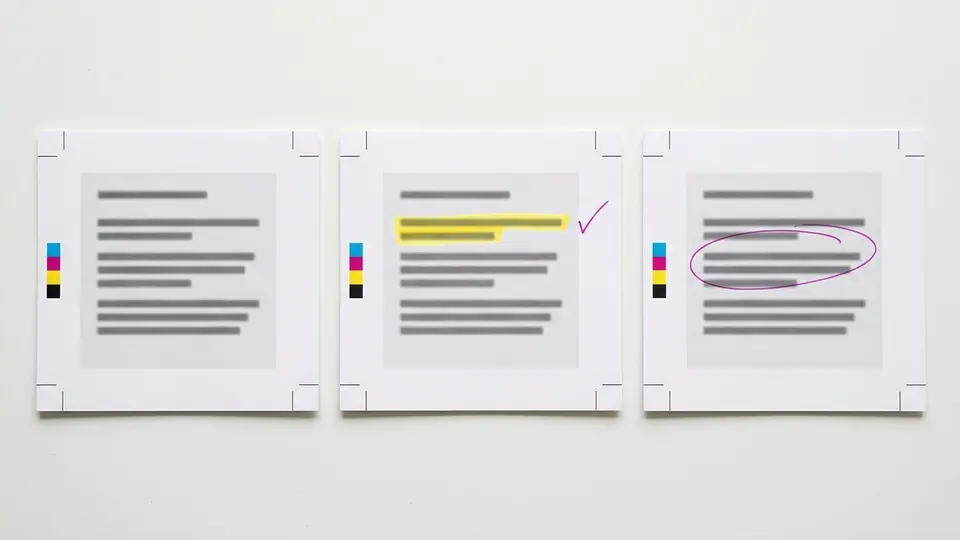
Which versions of PowerPoint can highlight text
Microsoft's support page on how to highlight your text in PowerPoint says text highlighting in PowerPoint 2019 and newer versions lets you mark text in yellow or another highlighter color, and that it is available on Windows, on macOS and in PowerPoint for the web. Its Requirements section is more exact:
| Platform | Versions Microsoft lists | Minimum build |
|---|---|---|
| Windows | PowerPoint for Microsoft 365 | Current Channel: Version 1606 or later; Semi-Annual Enterprise Channel: Version 1701 or later |
| Windows | PowerPoint 2024, 2021 and 2019 | None stated |
| Mac | PowerPoint for Microsoft 365 for Mac | Version 16.10 or later |
| Mac | PowerPoint 2024 for Mac and 2021 for Mac | None stated; Mac OS X 10.10 or later |
| Web | PowerPoint for the web | None stated |
The page's Applies To list also names PowerPoint 2016, but its Requirements section and its opening line both say 2019 and newer. Microsoft's own advice is that if you do not see the Text Highlight Color button on the Home tab, check those requirements. In practice, if you are on PowerPoint 2016 and the button is missing, use one of the alternatives further down.
How to highlight in PowerPoint on Windows
Pick a color with nothing selected, and the pointer becomes a highlighter until you press Esc.
Select the text
Click in a text box or placeholder and select the words you want to mark.
Open Text Highlight Color
On the Home tab, select the arrow next to Text Highlight Color.
Choose a color
The selected text is highlighted in the color you chose.
Highlight several separate passages
Microsoft documents a highlighter mode for marking pieces of text that are not next to each other:
- With no text selected on the slide, go to Home and select the arrow next to Text Highlight Color.
- Choose a color, then move the pointer over the text area of the slide. The pointer changes to a highlighter.
- Select each portion of text you want to highlight.
- Press Esc to turn the highlighter off.
How to highlight in PowerPoint for Mac and the web
On a Mac, the steps on Microsoft's page are the same for a single selection: select the text, go to the Home tab, select the arrow next to Text Highlight Color, and choose a color. The Mac section also gives the same highlighter mode for several separate passages (choose a color with nothing selected, select each passage, press Esc) and the same No Color removal. The web section of the page gives the single-selection steps: select the text, then the arrow next to Text Highlight Color on the Home tab, then a color.
How to remove highlighting in PowerPoint
- Select the highlighted text.
- On the Home tab, select the arrow next to Text Highlight Color.
- Click No Color.
The same button applies and removes highlights, which matches how highlighting works in Word. If you highlight a lot of review notes in a deck, clear them before you present.
Alternatives when Text Highlight Color is missing
If your version has no highlighter, or you want a different kind of emphasis, Microsoft documents three other routes.
Change the font color
Microsoft's page on how to change the color of text on a PowerPoint slide covers versions from PowerPoint for Mac 2011 to Microsoft 365, including 2016. Select the text, then on the Home tab choose Font Color and pick a color. More Colors opens the Standard and Custom tabs, and Eyedropper matches a color already on the slide. To change text color across many slides at once, Microsoft suggests editing the slide master: View > Slide Master, select the layout, change the text color, then Close Master View.
Draw on the slide while presenting
Microsoft's page on how to draw on slides during a presentation explains the onscreen pen. On Windows, with Use Presenter View on, start the slide show, click the Pen button at the lower left of the slide and choose Pen, then drag to draw. Point to Ink Color to change the color, which is red by default. When you leave the show, PowerPoint asks whether to Keep or Discard your ink annotations. In PowerPoint for the web, the ink button in the lower-left corner offers a pen or a highlighter, but Microsoft notes that the web version cannot save onscreen annotations.
Point instead of marking
Microsoft's highlighting page lists two more ways to draw attention while presenting: turning the mouse into a laser pointer, and magnifying part of a slide in Presenter view. Neither changes the slide itself.
| Method | Changes the slide? | Works in | Best for |
|---|---|---|---|
| Text Highlight Color | Yes, until you choose No Color | 2019 and newer, Microsoft 365, web | Marking words for readers of the file |
| Font Color | Yes | All versions on Microsoft's page, including 2016 | Emphasis that is part of the design |
| Pen or ink in Slide Show | Only if you choose Keep | Desktop; web cannot save | Live emphasis while presenting |
| Laser pointer or zoom | No | Slide Show and Presenter view | Pointing during a talk |
How to highlight in Google Slides
Google Slides has its own highlighter. Google's Docs Editors Help page on how to change the color of text, objects and backgrounds gives the steps for a computer:
Open the presentation
Open the file in Google Slides on your computer.
Select the text
Highlight the words you want to mark.
Click Highlight color
In the toolbar, click Highlight color. Google notes this control is only available in Google Docs and Slides, not in Sheets.
Choose a color
Pick a preset color, or create a custom one.
For a custom color, open Highlight color or any other color tool, and under Custom click Add a custom color to enter a Hex code or RGB values, or Pick a custom color to use the eyedropper, which Google says is supported in Chrome and Edge. To color the whole text box rather than the words, select the box and use Fill color in the toolbar. The same Highlight color control in a document is covered in the guide to highlighting in Google Docs.
A worked example: a lecture slide
The slide text below is written for this example.
- While writing the deck. In PowerPoint 2021, pick yellow with nothing selected, then drag across "lighter" and "twisting motion". Press Esc to stop. Both phrases are marked for the co-author reviewing the file.
- Before presenting. Select the slide's text box contents and choose No Color, then give point 3 a dark red Font Color so the main cause stands out in the design.
- During the talk. Start the slide show, choose the Pen, and circle point 2 when you reach it. Choose Discard at the end if you want the file left clean.
- In Google Slides. The same review marks use Highlight color in the toolbar, and No color or a different color to change them.
Pitfalls when highlighting in PowerPoint
- Looking for the button in an older version. Microsoft's requirements list 2019 and newer and Microsoft 365. On 2016, use Font Color.
- Forgetting the highlighter is on. If every selection turns yellow, press Esc.
- Expecting web ink to save. PowerPoint for the web cannot save onscreen annotations. Draw on the desktop app and choose Keep if the marks must stay.
- Low contrast on a projector. Strong highlight colors can wash out text on a big screen. Light colors behind dark text read best.
Tips for highlighting slides
- Highlight words, not lines. One or two phrases per slide is enough; more and nothing stands out.
- Separate review marks from design. Use Text Highlight Color for notes you will remove, and Font Color for emphasis that belongs in the final deck.
- Match your other tools. If you build visuals in Canva, the Canva highlighting guide shows its Background effect, which plays a similar role.
To highlight in PowerPoint, use Text Highlight Color on the Home tab if your version is 2019 or newer, keep the highlighter on with Esc to stop, and clear marks with No Color. On older versions, Font Color and the slide show pen do the job, and Google Slides has its own Highlight color in the toolbar. For documents, PDFs and the web, the rest of the highlighting and annotation guides follow the same plan.
Common questions
Why is there no highlight button in my PowerPoint?
Your version is probably too old. Microsoft lists Text Highlight Color for PowerPoint 2019, 2021, 2024 and Microsoft 365 (Current Channel Version 1606 or later on Windows, Version 16.10 or later on Mac), plus PowerPoint for the web. On earlier versions, change the Font Color instead, or draw on the slide during the show.
How do I remove highlighting in PowerPoint?
Select the highlighted text, go to the Home tab, select the arrow next to Text Highlight Color and click No Color. The same control applies and removes highlights. If the color is a font color rather than a highlight, change it back with Font Color on the Home tab instead.
Can I highlight several bits of text at once in PowerPoint?
Yes, on Windows and Mac. With nothing selected, open the arrow next to Text Highlight Color on the Home tab and choose a color. The pointer turns into a highlighter. Select each piece of text you want, then press Esc to stop. Microsoft describes this mode in both the Windows and macOS sections of its help page.
How do I highlight text in Google Slides?
Open the presentation on your computer, select the words, and click Highlight color in the toolbar. Choose a preset color or create a custom one with a Hex code, RGB values or the eyedropper. Google says the Highlight color control is available in Google Docs and Slides, but not in Sheets.
Can I use a highlighter while presenting in PowerPoint?
Yes. During a slide show you can draw with the onscreen pen, and in PowerPoint for the web the ink button offers a pen or a highlighter. On the desktop, PowerPoint asks whether to Keep or Discard ink when the show ends. Microsoft notes that the web version cannot save onscreen annotations.
Sources
sign-off
Checked against its sources and signed before it went out.
Nora Feld
Editor · reviewed 2 Nov 2026